

👋 Hey, I’m Nikki. Each week I write about UX research strategy, communicating impact, and using AI to do your best work. For more: Claude Skills Bundle | Claude Agents | AI Prompt Library | Team Training | AI Courses for UXRs
P.S. Paid subscribers get access to full archive, all content, a private Slack community, Substack lives, and a hub of templates, scripts, and mini-courses
If you’ve ever sat down to synthesise a study with 14 browser tabs open, trying to remember whether you’ve already done research on this topic at some point in the last two years, whether someone in Slack said something useful about it last March, whether that one quote from the interviews lives in Drive or in your old Notion repo or in the folder you keep meaning to organise, you’re not alone.
That alt-tabbing dance is the part of research nobody puts on the methods page, and it eats hours out of every project. For solo researchers and small teams, it can eat days. I’ve been finding that MCPs are the thing that fixes this.
Most articles about Claude MCPs (Model Context Protocols, if you’re new to the term) are basically a list of integrations followed by “now you can chat with your Drive!” or “now you can search your Slack!” However, that only scratches the surface of what these connectors can do.
When I connect my research tools to Claude, I’m not looking for a more clever chatbot, but rather a triangulation surface across sources that never used to talk to each other (including sources outside my org and outside my research team that I’d never had time to engage with properly), an audit layer for work I couldn’t previously see, and a pipeline for closing feedback loops my workflow has always left open.
Through time, I’ve built up a small library of MCP-powered workflows that go well beyond “summarize this folder.” I want to walk you through 19 of them, grouped by the four jobs MCPs do for a researcher, with concrete examples and prompts you can paste in today. Some of these are for primary research (recruiting, fielding, synthesising), some are for secondary research (sales calls, cross-team data, academic literature, external context), and some connect phases.
I’ve been finding these especially useful for solo researchers, small teams without research ops, and people who are tired about being the glue that keeps teams and information together.
What an MCP is
An MCP is a connection that lets Claude reach directly into a tool you already use, like Gmail, Google Drive, Notion, Slack, Linear, Granola, Calendar, and read or act inside it without you having to copy-paste, download, or screenshot anything.
The connection runs both ways. Claude can pull information out of the tool (read your inbox for emails matching a query, surface every Drive file mentioning a topic, scan Granola transcripts for a quote) and, with permission, can act inside it (draft a Gmail reply, add a row to a database, create a Notion page).
Every tool you’ve been using to store research material is now part of your reasoning surface, which means the research repo that lives in your head, your laptop, your inbox, and three SaaS platforms can finally be treated like one system. Even better, the data that lives in other teams’ tools (the sales team’s call recordings, the CS team’s ticketing system, the BI team’s analytics, marketing’s social listening) becomes accessible to you in a way it usually isn’t, as long as those teams are willing to let you connect.
I’ll come back to the caveats (security, hallucination risk, what to connect and what to keep separate) at the end.
How to connect an MCP and where it works
When I asked a small group of researchers in my network whether they’d ever connected an MCP themselves, only about a third had, and almost half didn’t realize the connectors menu existed at all.
So here’s a fast walk-through. If you already have a few MCPs set up, skip ahead to the use cases.
Where MCPs work
Anthropic ships a few different surfaces that all support MCPs:
Claude chat. The main one most readers will be using. Connectors live under Settings > Connectors. You can browse the Directory of pre-built connectors (Google Drive, Gmail, Slack, Notion, Linear, GitHub, Granola, and a couple of hundred others as of 2026) and add them with a few clicks. You can also toggle them on or off per conversation using the “+” button next to the chat input.
Projects. When you’re working inside a Project on Claude, the connectors you’ve enabled work the same way they do in chat. The reason I like running my recurring research workflows inside Projects is that I can give Claude persistent instructions in the Project description (”always check my Drive for prior research on this topic before answering,” “use my Notion participant database for recruitment ideas”) so I don’t have to re-prompt the same setup every conversation.
Claude Cowork. The desktop product for non-developers who want Claude to do work across their tools without typing every prompt. Most of the major connectors (Gmail, Drive, Slack, Notion, Calendar, and others) are built in and ready to authenticate. The setup flow is similar to Claude chat.
Claude Code. The terminal product for developers. MCPs work here too, configured via a config file rather than a UI. Fine if you’re comfortable in a terminal. Not the right place to start if you’re not. If you’re a UXR who codes, this is where I do data-cleaning and analysis work with MCPs hooked in.
Setting up a Directory connector
The Directory is your starting point for anything Anthropic or a major vendor has already built a connector for, which by my last count covers about 80% of the tools UXRs care about.
The flow:
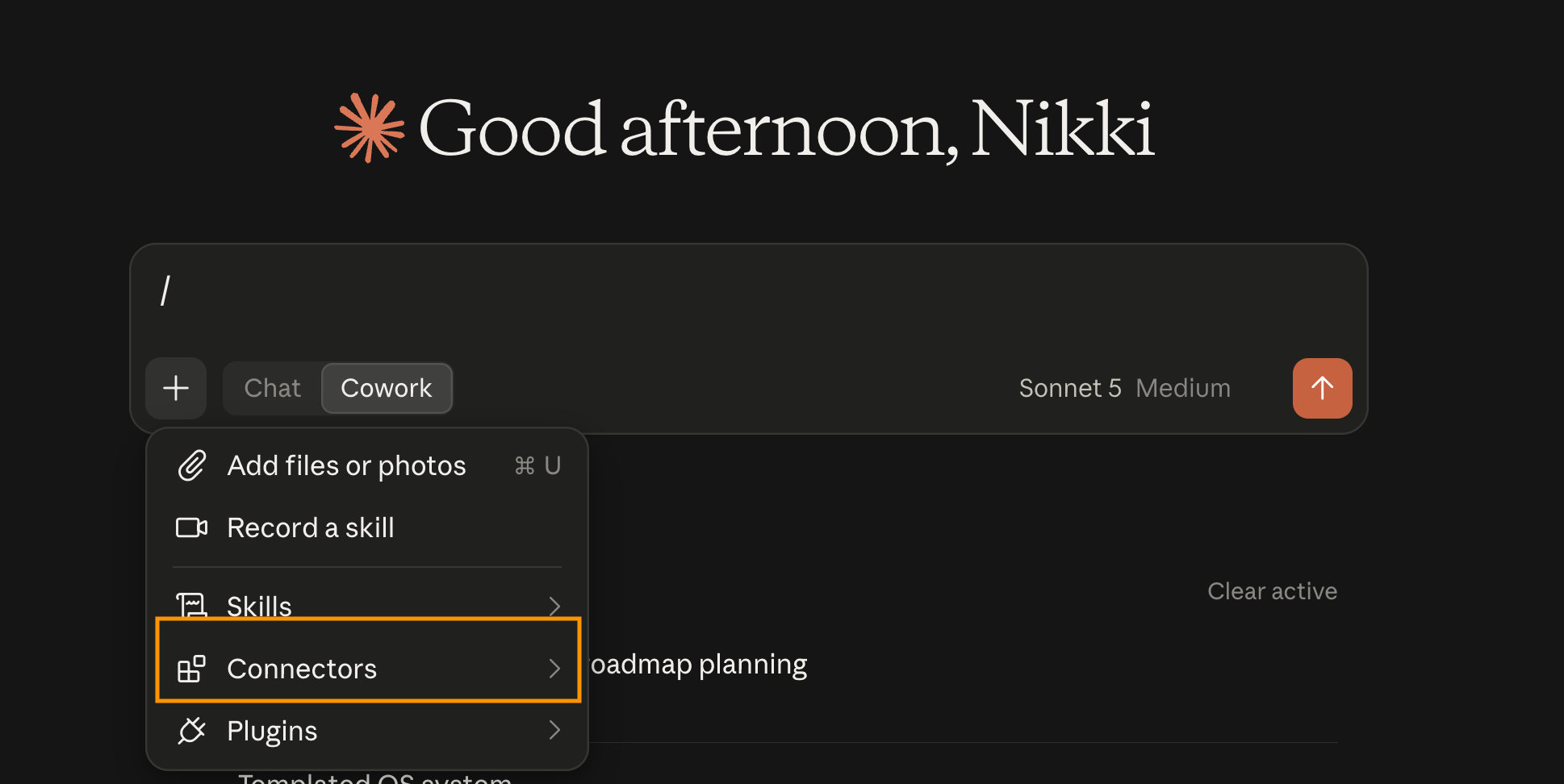
Open Claude and click the “+” button next to your chat input. Choose “Connectors.”
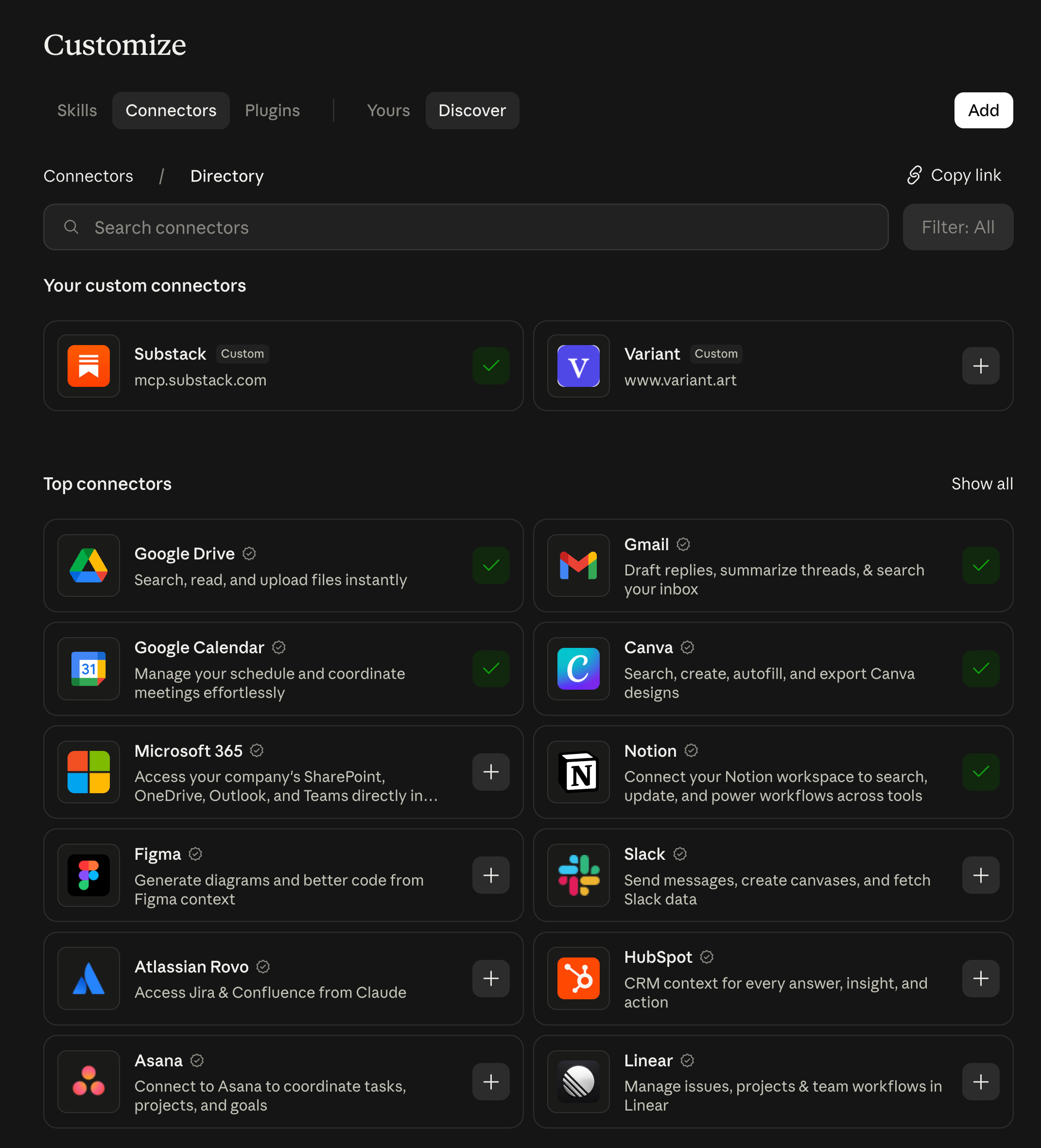
Browse or search the Directory. Click the connector you want.
You’ll be taken through an OAuth flow that signs you into the service (Google, Slack, Notion, and so on) and asks for the specific permissions Claude needs. Read the permissions carefully, this is the moment to decide what level of access to grant.
Once authenticated, the connector appears in your list with a toggle.
Directory connectors are available on all plans including Free, so you can still set up Gmail, Drive, Notion, Slack, and a handful of others to test the workflows in this article.
Adding a custom connector (Pro plan and above)
If the service you want isn’t in the Directory, you can add a custom MCP server URL. This is how I connect to a couple of niche tools I use that no one’s built a Directory entry for yet.
The flow:
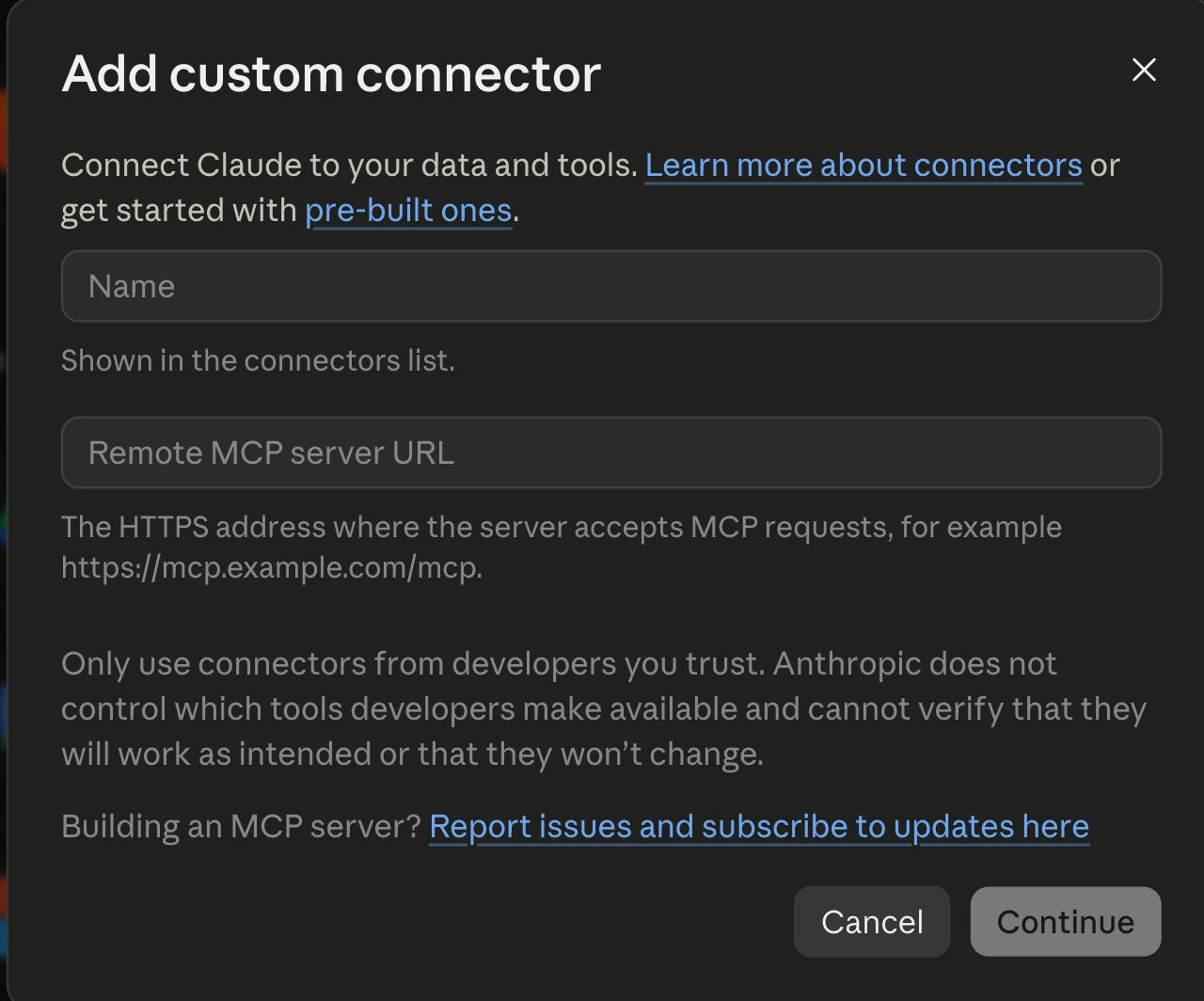
Settings > Customize > Connectors > Add custom connector
Paste in the MCP server URL (usually something ending in
/mcpor/sse)Optionally add an OAuth Client ID and Secret if the server requires them
Save, then click Connect to authenticate
Here is an example of adding Dropbox as a custom connector. I simply Googled “Dropbox MCP” and found the instructions from the Dropbox site.
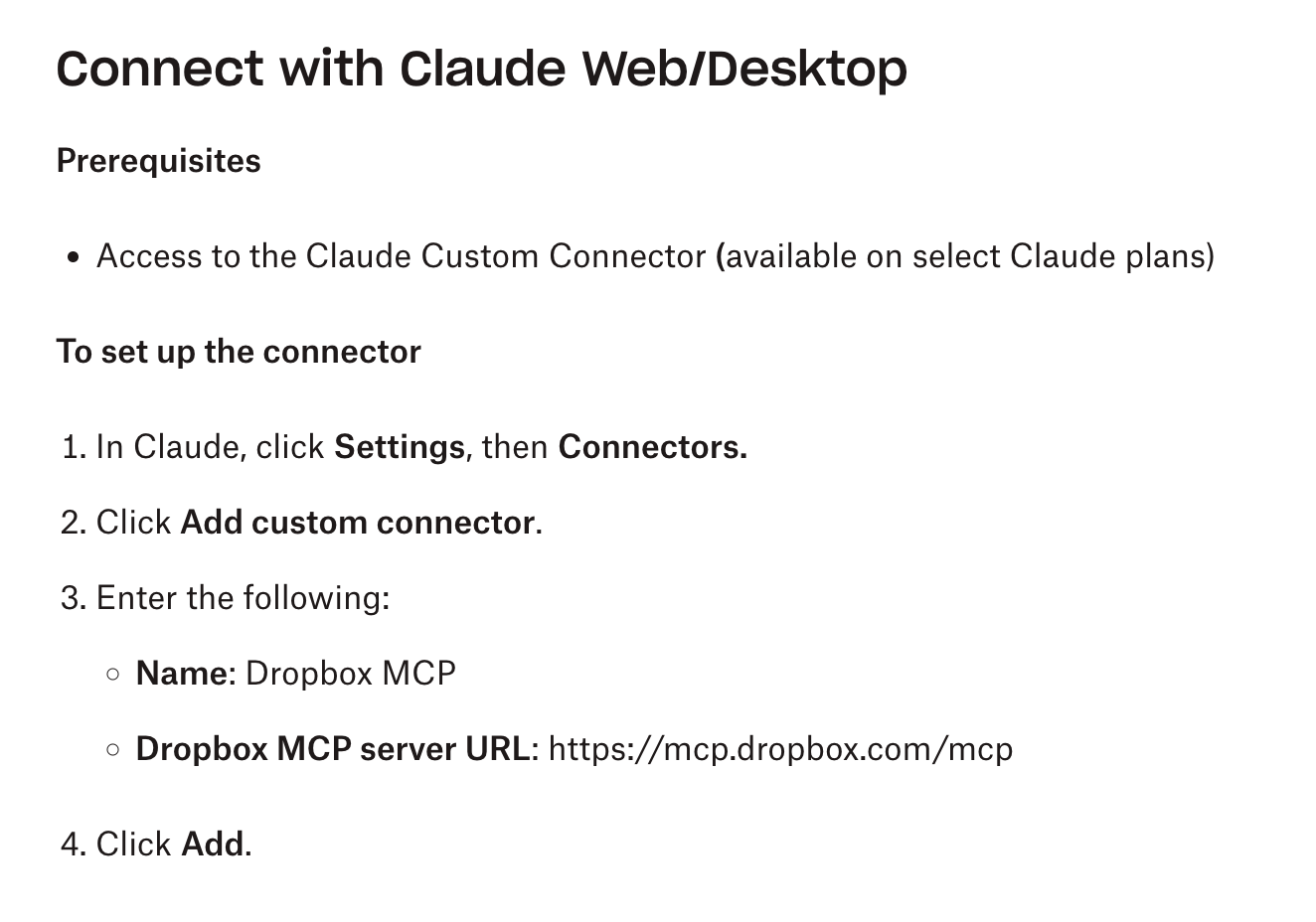
Then popped those into my Claude
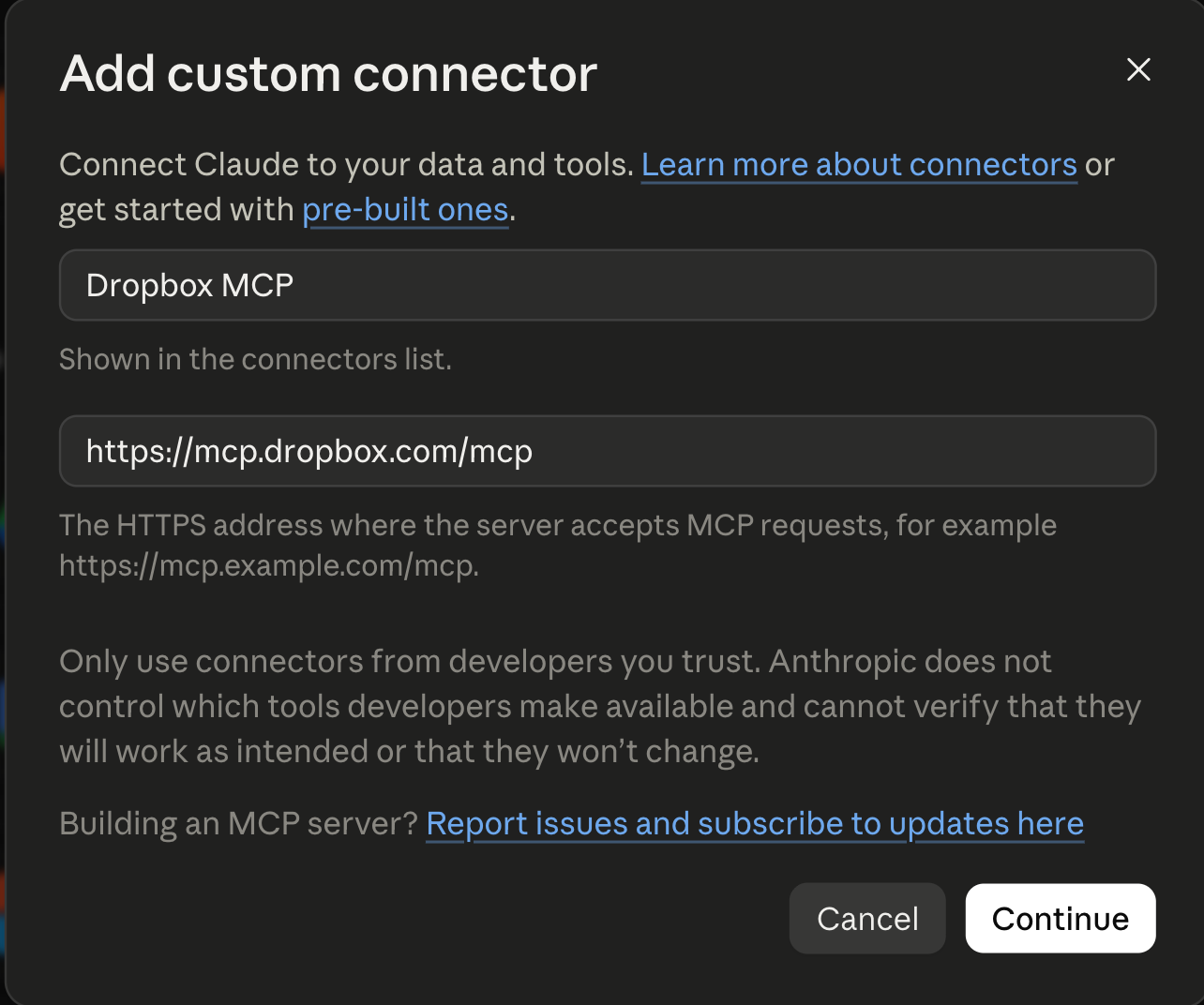
Custom connectors require a paid plan (Pro, Max, Team, or Enterprise).tdro
Toggling connectors per conversation
Just because you’ve connected an MCP doesn’t mean it’s active in every chat. In a new conversation, click the “+” button next to the chat input and you’ll see a toggle list of your enabled connectors. Switch on only the ones you need for the current piece of work.
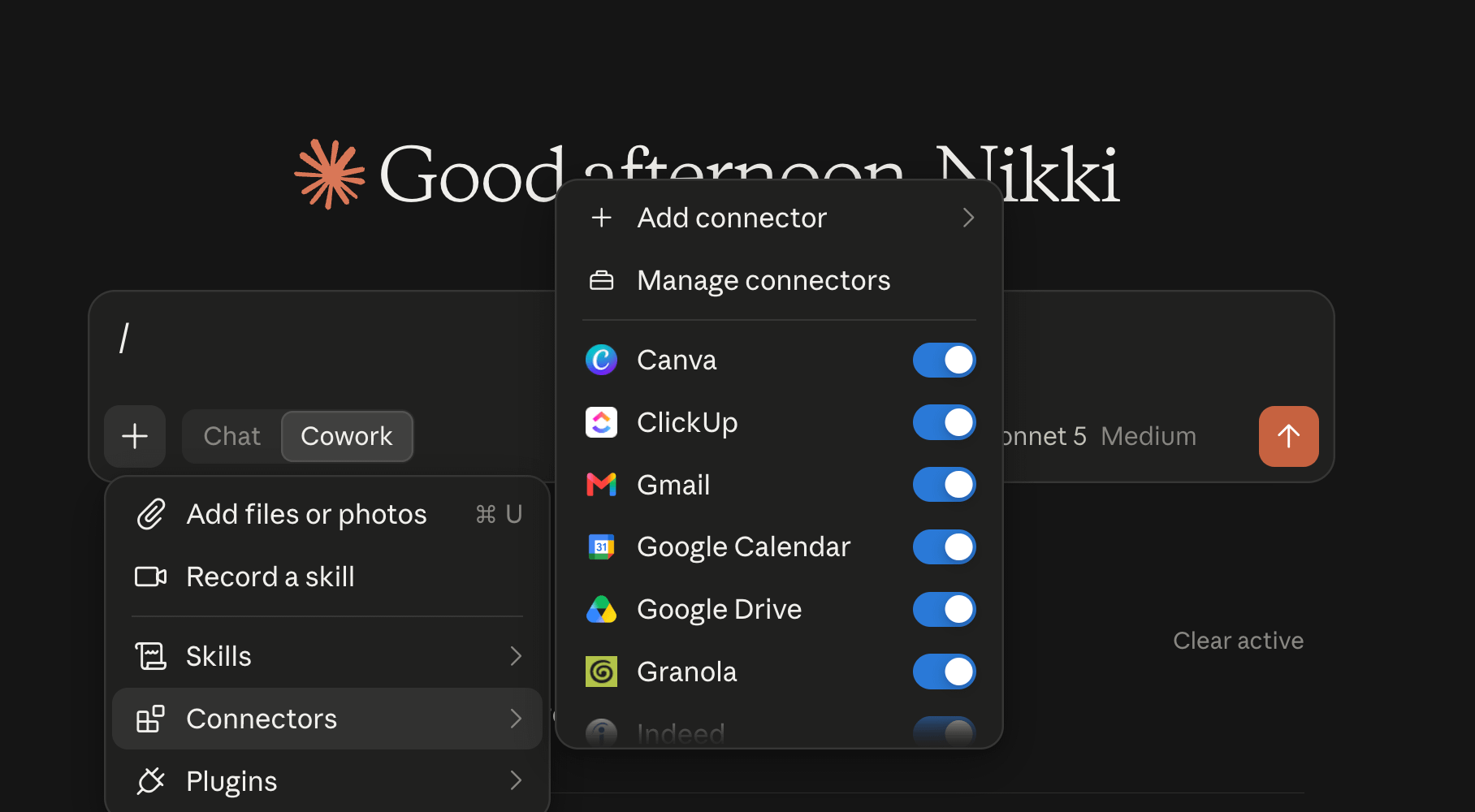
I recommend keeping fewer connectors active per conversation rather than more, because every active connector adds tool definitions to Claude’s context window, which can get expensive. Six or seven active connectors per conversation is fine while twenty starts to slow things down. If you’re running one of the use cases below that involves three or four connectors, enable just those.
Access
Once you connect a tool to Claude, you can play around with the permissions and how much access you want to give to the tool. First, navigate to your connectors (under “Yours”) and click into one of your tools. You will find different options of “always allow,” “needs approval,” and “blocked.”
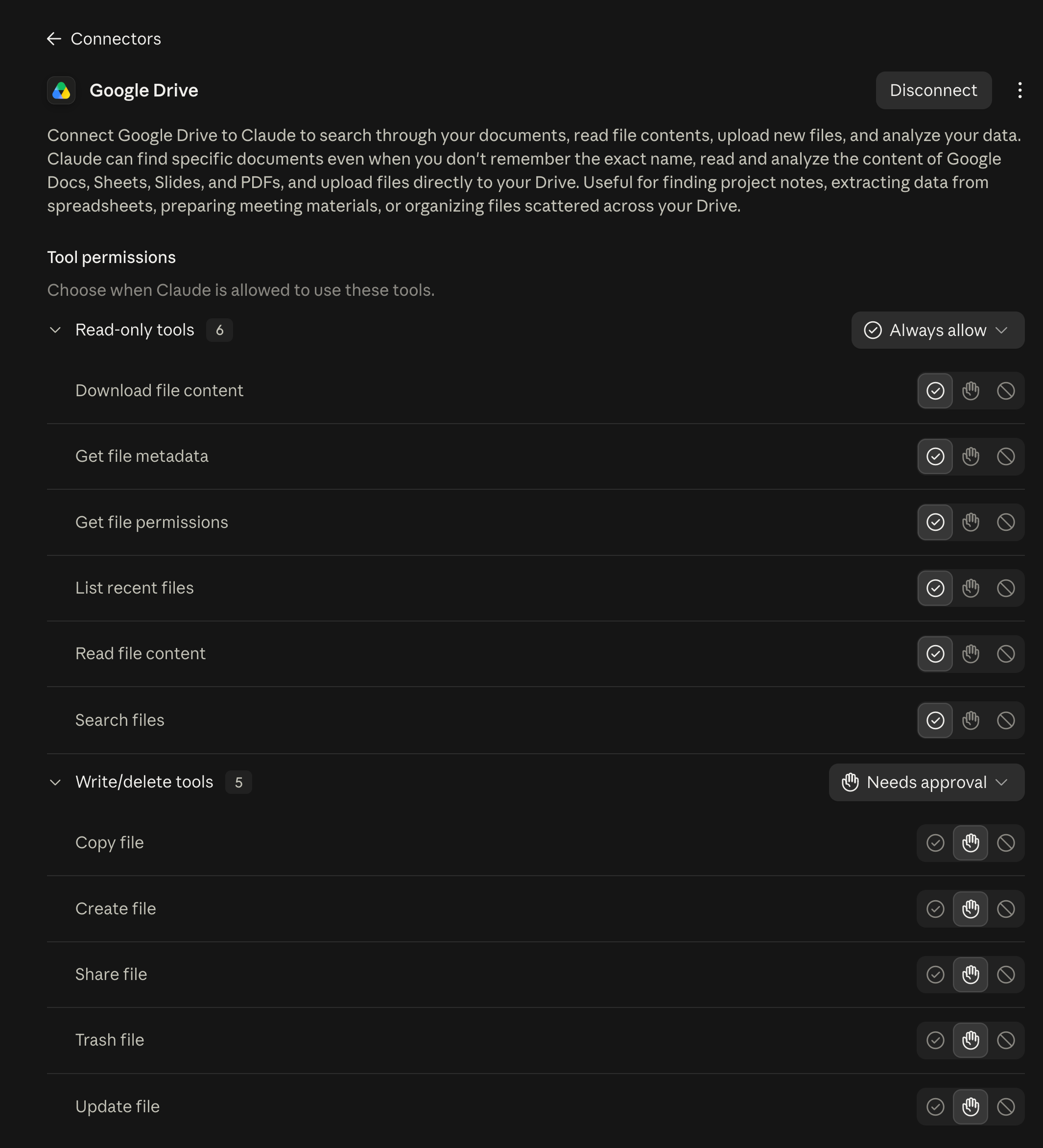
This way you can customize exactly how you want Claude to use your tools.
When you connect an MCP, Claude only inherits the permissions your account already has in the underlying tool. If you can’t see a particular Drive folder, neither can Claude. If you’ve never been added to the #leadership Slack channel, the Slack connector can’t read it for you.
If you’ve been hearing about MCPs and feeling like the public conversation is stuck on the same five obvious use cases, this guide is for you. Paid subscribers get the full set of 15 workflows I’m building into my own practice, organised by what they do for your research.
Below, I walk you through:
The four jobs MCPs do for a researcher
19 concrete workflows you can build today, each with the MCPs involved, a real-feeling research scenario, and a prompt you can paste in
The “sales call goldmine” workflow that most UXRs have never tapped because they don’t think to ask the sales team for access
The academic literature pre-flight check that takes 20 minutes and stops you from re-running studies that already exist in the literature
The cross-team documentation excavator that treats your whole company as a research repo, not just the research space you control
Six Bad / Better prompt rewrites showing the difference between a prompt that gets you a generic summary and one that gets you something genuinely useful
The credibility ladder I run sources through before I trust an MCP-powered synthesis (especially the ones pulling from public sources of varying quality)
The “what not to connect” checklist I run through before adding any MCP, with the categories where I keep Claude out completely
A starter workflow recipe for picking your first three MCP setups so you don’t try to wire everything at once
If MCPs have been the thing you keep meaning to set up but haven’t because the use cases on offer feel underwhelming, this will give you a clean list of workflows worth building.
Become a paid subscriber to access the rest of this article and all the other articles and perks (free skills, templates, tools, and questions answered!)
